

->>>>>BASE APPLY IS VISUAL BASIC 6.0<<<<<-


The is Visual Basic? Said“ Visual” make the
point which applied for making Graphical User
Interface ( GUI). In This Way You [shall] no longer
write down instruction pemrograman in lines codes,
but easyly You can do drag and drop objects which You
to apply.
Said“ Basic” is language part BASIC(Beginners
All Purpose Symbolic Instruction Code), that is a
programming language which in the history have many
applied by of programmers for compiling application.
Visual Basic is developed from BASIC programming
language.


1.1 Start Visual Basic 6.0
After You instal program Visual Basic 6.0,
You can start with button Start on the taskbar at
Windows. Following the stages;steps completely.
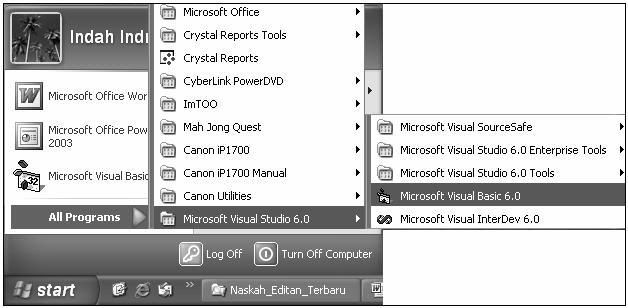
1. Depress button Start from Taskbar at Windows.
2. Choose All, Programs, and point at choice of
Microsoft Visual Studio 6.0 and click at choice
of Microsoft Visual Basic 6.0.

Gambar 1.1 Membuka Program Visual Basic 6.0
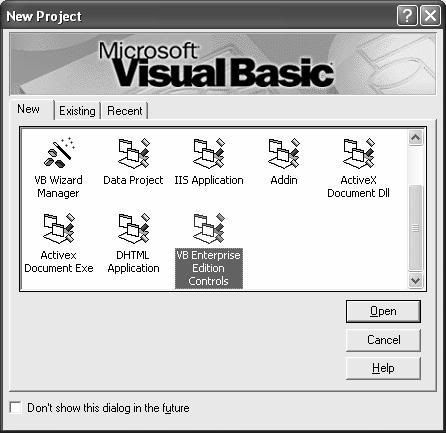
3. After You successfully implement Visual Basic for
the things first time his(its, You will see logo
display Visual Basic 6.0 and a few moment later
will emerge dialogue box following.

Gambar 1.2 Kotak Dialog New Project
4. The dialogue box ask confirmation to You is for
choosing project type wishing You making. In this case,
select;choose project type VB Enterprise Edition Constrols.
Depress button Open for continuing.

Gambar 1.3 Kotak Dialog Pemilihan Tipe Proyek
5. With election of type VB Enterprise Edition Controls above,
a user not necessarily again weary added the required
components. That thing is because at the project type
have provided components completely. Depress button Open
for continuing.
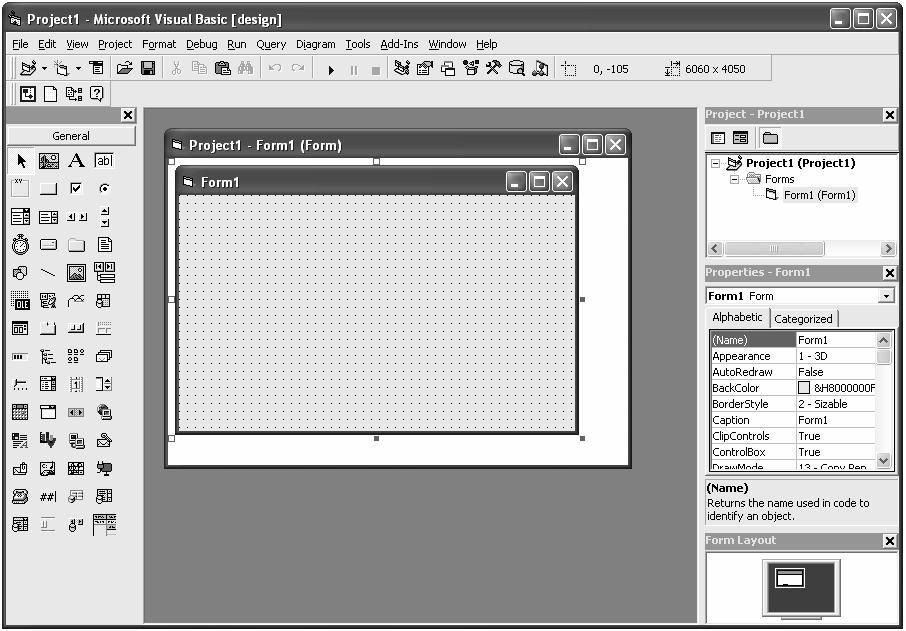
6. After buttoning Open, will emerge a program [screen/sail]
Visual Basic by accompanied by is complete components on
the part of General or Toolbox.

Gambar 1.4 Tampilan Interface Visual Basic
7. Display above can called as area of Integrated Development
Environment ( IDEA). At area of the, You can do various
activities like processes editing, compiling, and debugging.


1.2 Mengenal Elemen Visual Basic 6.0
After You successfully open Visual Basic at [screen/sail],
You will find interface program Visual Basic like Picture of 1.4.
Seen that interface consisting of some element.

1.2.1 Menu Bar
Menu Bar will present comands available for You apply
Your moment working for Visual Basic. In default, this bar menu
have choice of File, Edit, View, Window, Query, Diagram, Tools,
Add-Ins, and Help. The side, referring to pemrograman, there
are menu which can be accessed, for example Project, Format,
Debug, or Run.

Gambar 1.5 Tampilan Menu Bar
If each the bar menu clicked, Visual Basic will present
preference table from bar menu which You is click is the.

1.2.2 Context Menu
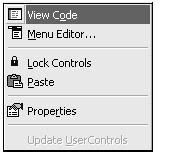
Context Menu contain shortcut which in a moment You
can apply for opening a context menu an object. For opening
this Context Menu, You can click right of object which You to
open the Context Menu. Following the picture display.


Gambar 1.6 Tampilan Context Menu
Context Menu above, we take away from Designer, Form, that
is by the way of clicking right of Form Designer.

1.2.3 Toolbar
This facility can quicken the comands access in
pemrograman. You can click buttons in this toolbar to do
certain action. standardly, toolbar type Standard which
will be presented by Your moment start Visual Basic.
If You wished to arrange display toolbar was other,
You can apply choice of Toolbar at bar menu View.

Gambar 1.7 Tampilan Toolbar

1.2.4 Toolbox
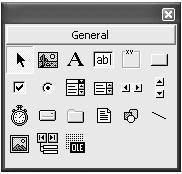
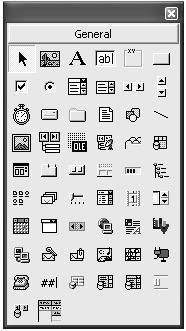
a window is containing of buttons control which
You would apply for designs or“ Membangun” a form or report.
Besides button control under, You also can define or
add x'self button control is other.

Gambar 1.8 Tampilan Toolbox Tipe Standard

Gambar 1.9 Tampilan Toolbox Tipe VB Enterprise Edition Controls
Come up not his(its of this window earn You arrange from
choice of Toolbox on the bar menu View - Toolbox.

1.2.5 Window Project Explorer
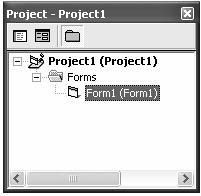
this Window Project Explorer present list form,
module, and also the other object in project active.
A Project is a group of file which You apply to develop
(build a application. Following the picture display.

Gambar 1.10 Tampilan Window Project Explorer

1.2.6 Window Properties
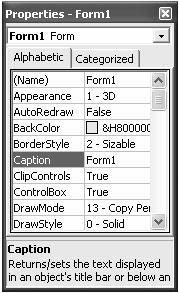
this Window Properties earn You apply to arrange
properties a or object control which You selecting.
a property is object characteristic, like size, caption,
text, or color.

Gambar 1.11 Tampilan Window Properties

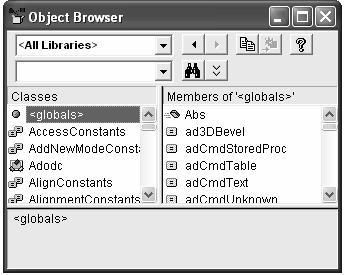
1.2.7 Objek Browser
This browser object is enlisting the object in
project active. You can apply Object Browser for presenting
the object in Visual Basic and the application of other.
To present this object You can apply way of View-Object
Browser. Following the picture display.

Gambar 1.12 Tampilan Object Browser

1.2.8 Form Designer
Form Designer is a window available for You apply
to arrange display the application of which You compiling,
or equally as place of design a form. In this form You can
add control, graphic, and draw into form on course which
You wish. Every form have window designer form x'self.
Following the pictures displays

Gambar 1.13 Tampilan Form Designer

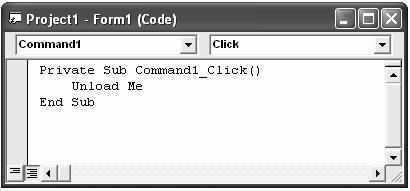
1.2.9 Window Code Editor
Window Code Editor is a display window which applied
to enter application code. this Window Code Editor applied
to define codes form or modules codes in a applications.
Following the picture display.

Gambar 1.14 Tampilan Window Code Editor

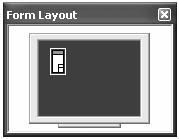
1.2.10 Window Form Layout
Window Form Layout applicable to control position of
form at the application of You apply graphic system in a
[screen/sail]. With this facility, You can see and know
position of form new You is design. Following the picture display.

Gambar 1.15 Tampilan Window Form Layout

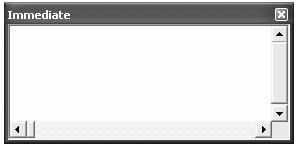
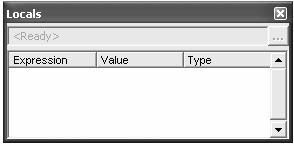
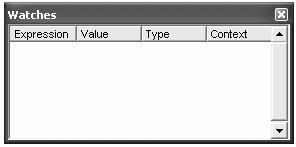
1.2.11 Window Immmediate, Local, dan Watch
this Window-window is window addition which applied
for debug process the application of you. this Window-window
You can only applied if You implement application with
interface Visual Basic. To present this window-window,
You can do him(it by the way of View - Name Window.

Gambar 1.16 Tampilan Window Immediate

Gambar 1.17 Tampilan Window Locals

Gambar 1.18 Tampilan Window Watches
Tampilkan postingan dengan label TOOL HACKING. Tampilkan semua postingan

Sabtu, 03 Mei 2008

ACTIVE HOST


Source code under this is a[n program for
checked an Host Yang is active that is to know what
particular computer being is active.
1. OPen 1 Project(name=ActiveIP.vbp)
2. Add 1 Form(name=frmCekIP)tambahkan:
a. 1 ListBox
b. 2 TextBox
c. 1 CommandButton(name=CekIP)


Copy coding under this and paste in Editor Form:

Option Explicit
Const SOCKET_ERROR = 0
Private Declare Function GetHostByName Lib "wsock32.dll" _
Alias "gethostbyname" (ByVal HostName As String) As Long
Private Declare Function WSAStartup Lib "wsock32.dll" _
(ByVal wVersionRequired&, ipWSAdata As WSAdata) As Long
Private Declare Function WSACleanup Lib "wsock32.dll" () As Long
Private Declare Sub CopyMemory Lib "kernel32" Alias "RtlMoveMemory" _
(hpvDest As Any, hpvSource As Any, ByVal cbCopy As Long)
Private Declare Function IcmpCreateFile Lib "icmp.dll" () As Long
Private Declare Function IcmpCloseHandle Lib "icmp.dll" _
(ByVal HANDLE As Long) As Boolean
Private Declare Function IcmpSendEcho Lib "ICMP" (ByVal IcmpHandle As Long, _
ByVal DestAddress As Long, ByVal RequestData As String, _
ByVal RequestSize As Integer, RequestOptns As IP_OPTION_INFORMATION, _
ReplyBuffer As IP_ECHO_REPLY, ByVal ReplySize As Long, ByVal TimeOut As Long) As Boolean

Private Type WSAdata
wVersion As Integer
wHighVersion As Integer
szDescription(0 To 255) As Byte
szSystemStatus(0 To 128) As Byte
iMaxsockets As Integer
iMaxUdpDg As Integer
ipVendorInfo As Long
End Type

Private Type Hostent
h_name As Long
h_aliases As Long
h_addrtype As Integer
h_length As Integer
h_addr_list As Long
End Type

Private Type IP_OPTION_INFORMATION
TTL As Byte
Tos As Byte
Flags As Byte
OptionsSize As Long
OptionsData As String * 128
End Type

Private Type IP_ECHO_REPLY
Address(0 To 3) As Byte
Status As Long
RoundTripTime As Long
DataSize As Integer
Reserved As Integer
data As Long
Options As IP_OPTION_INFORMATION
End Type
Public dir As String


Public Function doPing(ByVal HostName As String) As Boolean
Dim hFile As Long, ipWSAdata As WSAdata
Dim hHostent As Hostent, Addrlist As Long
Dim Address As Long, rIP As String
Dim OptInfo As IP_OPTION_INFORMATION
Dim EchoReply As IP_ECHO_REPLY
Call WSAStartup(&H101, ipWSAdata)
If GetHostByName(HostName + String(64 - Len(HostName), 0)) <> SOCKET_ERROR Then
CopyMemory hHostent.h_name, ByVal GetHostByName(HostName + String(64 - Len(HostName), 0)), Len(hHostent)
CopyMemory Addrlist, ByVal hHostent.h_addr_list, 4
CopyMemory Address, ByVal Addrlist, 4
End If
hFile = IcmpCreateFile()
If hFile = 0 Then
MsgBox "Unable to create File Handle", vbCritical + vbOKOnly
doPing = False
Exit Function
End If
OptInfo.TTL = 225
If IcmpSendEcho(hFile, Address, String(32, "A"), 32, OptInfo, EchoReply, Len(EchoReply) + 8, 2000) Then
rIP = CStr(EchoReply.Address(0)) + "." + CStr(EchoReply.Address(1)) + "." + _
CStr(EchoReply.Address(2)) + "." + CStr(EchoReply.Address(3))
Else
doPing = False
End If
If EchoReply.Status = 0 Then
doPing = True
Else
doPing = False
End If
Call IcmpCloseHandle(hFile)
Call WSACleanup
End Function

Private Sub Command1_click()
Dim i As Integer
Dim x, y
Dim result As Boolean
Dim resultString As String
If Trim(Text1) = "" Then
MsgBox "Isikan alamat IP", vbCritical + vbOKOnly
Exit Sub
End If
List1.Clear
x = Split(Text1.Text, ".")
y = Split(Text2.Text, ".")
For i = CInt(x(3)) To CInt(y(3))
dir = x(0) & "." & x(1) & "." & x(2) & "." & i
result = doPing(dir)
If result = True Then
resultString = "Aktif"
Else
resultString = "Non-aktif"
End If
List1.AddItem "Pinging" & dir & "..." & resultString
List1.Refresh
Next
End Sub

OPEN PORT


Source code following is program for
looking for Port open.
1. Open 1 Project(name:Port_Scanner.vbp)
2. Add 1 Form(name:frmPortScanner)
Adds:
a. 5 TextBox:
Textbox1(name=TxtIP)
Textbox2(name=TxtFrom)
Textbox3(name=TxtTo)
Textbox4(name=TxtTime)
Textbox5(name=TxtData)
b. 2 Timer:
Timer1(name=TmrConnected,enable=false)
Timer2(name=TimeOut,enable=false)
c. 1 commandButton(name=scan)
d. Winsock(name=sckScan)untuk menambahkan
kontrol winsock dari menu Project-Components
-beri tanda cek pada Microsoft Wincock
control 6.0
e. 1 Label(name=Lblscan)
f. 1 ListBox(name=LstResult)


Copy coding under this and paste in Editor Form:
 
Option Explicit
Dim Port As Single
Dim Scanning As Boolean
Dim RemoteOS As String
Dim PortType As Integer

Private Sub CmdScan_Click()
If Scanning = False Then
PortType = 0
LstResult.Clear
LstResult.AddItem " Port: service:"
LstResult.AddItem "=============================================="
TxtFrom.Enabled = False
TxtIP.Enabled = False
TxtTime.Enabled = False
TxtTo.Enabled = False
TxtData.Enabled = False
CmdScan.Caption = "&Cancel"
Scanning = True
Port = TxtFrom.Text + 1
BeginScan
Else
TxtFrom.Enabled = True
TxtIP.Enabled = True
TxtTime.Enabled = True
TxtTo.Enabled = True
TxtData.Enabled = True
CmdScan.Caption = "&Scan Again"
Scanning = False
TimeOut.Enabled = False
TmrConnected.Enabled = False
sckScan.Close
Port = TxtTo.Text
LblScan.Caption = ""
End If
End Sub

Private Sub sckScan_Connect()
TimeOut.Enabled = False
sckScan.SendData "GET abcdef.htm" & vbCrLf & "USER abcdef" & vbCrLf & "FINGER abcdef" & vbCrLf
TmrConnected.Interval = TxtData.Text
TmrConnected.Enabled = True
End Sub

Private Sub sckScan_DataArrival(ByVal bytesTotal As Long)
Dim Data As String
sckScan.GetData Data, vbString
If InStr(1, Data, vbLf) <> 0 Then
RecognizePort Data
sckScan.Close
Port = Port + 1
BeginScan
End If
End Sub

Private Sub TimeOut_Timer()
TimeOut.Enabled = False
Port = Port + 1
BeginScan
End Sub

Private Sub TmrConnected_Timer()
LstResult.AddItem Format(sckScan.RemotePort, " #00000 --------->>") & " >Gue ga' tau...."
TmrConnected.Enabled = False
Port = Port + 1
BeginScan
End Sub

Private Sub BeginScan()
If Port <= TxtTo Then
sckScan.Close
sckScan.RemoteHost = TxtIP.Text
sckScan.RemotePort = Port
LblScan.Caption = " Port: " & Port & " @ " & sckScan.RemoteHost
sckScan.Connect
TimeOut.Interval = TxtTime.Text
TimeOut.Enabled = True
On Error Resume Next
Else
Call CmdScan_Click
End If
End Sub

Private Sub RecognizePort()
Dim MyType As String
If InStr(1, Data, "FTP") > 0 Then
MyType = "FTP Server"
If InStr(1, Data, "Serv-U") > 0 Then
MyType = MyType & "(Serv-U)"
End If
ElseIf InStr(1, UCase(Data), "HTTP") > 0 Or _
InStr(1, UCase(Data), "HTML") > 0 Then
MyType = "HTTP Server"
If InStr(1, Data, "Microsoft") > 0 Then
MyType = MyType & "(Microsoft)"
ElseIf InStr(1, Data, "Apache") > 0 Then
MyType = MyType & "(Apache)"
End If
ElseIf InStr(1, UCase(Data), "MAIL") > 0 Then
MyType = "MAIL Server"
If InStr(1, Data, "Microsoft") > 0 Then
MyType = MyType & "(Microsoft)"
End If
ElseIf InStr(1, UCase(Data), "IMAP") > 0 Then
MyType = "IMAP Server"
If InStr(1, Data, "Microsoft") > 0 Then
MyType = MyType & "(Microsoft)"
ElseIf InStr(1, UCase(Data), "NNTP") > 0 Then
MyType = "NNTP Server"
If InStr(1, Data, "Microsoft") > 0 Then
MyType = MyType & "(Microsoft)"
End If
ElseIf InStr(1, UCase(Data), "NOTICE AUTH") > 0 Then
MyType = "IRC Server"
ElseIf InStr(1, Data, "ERROR: Your host is trying too (re)connect too fast") > 0 Then
MyType = "IRC Server"
ElseIf Mid(Data, 1, Len("GET abscdef.htm")) = "GET abcdef.htm" Then
MyType = "PING Server"
Else
MyType = "Ora Ngerti...."
End If
LstResult.AddItem Format(sckScan.RemotePort, " #00000 --------->>") & " >" & MyType
End Sub

MAC ADDRESS


MAC Address elongation from Media Access
Control Address or can called as on unique serial
number which attached in network card.

1. Make 1 project by 1 Form
2. Add 1 Commanbutton(name=CmdGetMAC,caption=
Get MAC address)
3. Add 2 Label, label1(Caption=IP Address Tujuan)
dan label2(name=LblMAC)
4. Add 1 Textbox(name=TxtIPAddress)


Copy coding under this and paste in Editor Form:

Option Explicit
Private Const NO_ERROR = 0
Private Declare Function inet_addr Lib "wsock32.dll" _
(ByVal s As String) As Long
Private Declare Function SendARP Lib "iphlpapi.dll" _
(ByVal DestIP As Long, ByVal ScrIP As Long, _
pMacAdd As Long, PhyAddrLen As Long) As Long

Private Declare Sub CopyMemory Lib "kernel32" _
Alias "RtlMoveMemory" (dst As Any, scr As Any, _
ByVal bcount As Long)

Private Sub CmdGetMAC_Click()
Dim sRemoteMacAddress As String
If Len(TxtIPAddress.Text) > 0 Then
If GetRemoteMACAddress(TxtIPAddress.Text = _
sRemoteMacAddress) Then
LblMAC.Caption = sRemoteMacAddress
Else
LblMAC.Caption = "(SendARP call failed)"
End If
End If
End Sub


Private Function GetRemoteMACAddress(ByVal sRemoteIP _
As String, sRemoteMacAddress As String) As Boolean
Dim dwRemoteIP As Long
Dim pMacAddr As Long
Dim bpMacAddr() As Byte
Dim PhyAddrLen As Long
Dim cnt As Long
Dim tmp As String

dwRemoteIP = inet_addr(sRemoteIP)
If dwRemoteIP <> 0 Then
PhyAddrLen = 6
If SendARP(dwRemoteIP, 0&, pMacAddr, _
PhyAddrLen) = NO_ERROR Then
If pMacAddr <> 0 And PhyAddrLen <> 0 Then
ReDim bpMacAddr(0 To PhyAddrLen - 1)
CopyMemory bpMacAddr(0), pMacAddr, _
ByVal PhyAddrLen
For cnt = 0 To PhyAddrLen - 1
If bpMacAddr(cnt) = 0 Then
tmp = tmp & "00-"
Else
tmp = tmp & Hex$(bpMacAddr(cnt)) & " "
End If
Next
If Len(tmp) > 0 Then
sRemoteMacAddress = Left$(tmp, Len(tmp) - 1)
GetRemoteMACAddress = True
End If
Exit Function
Else
GetRemoteMACAddress = False
End If
Else
GetRemoteMACAddress = False
End If
Else
GetRemoteMACAddress = False
End If
End Function